Importing a Recipe
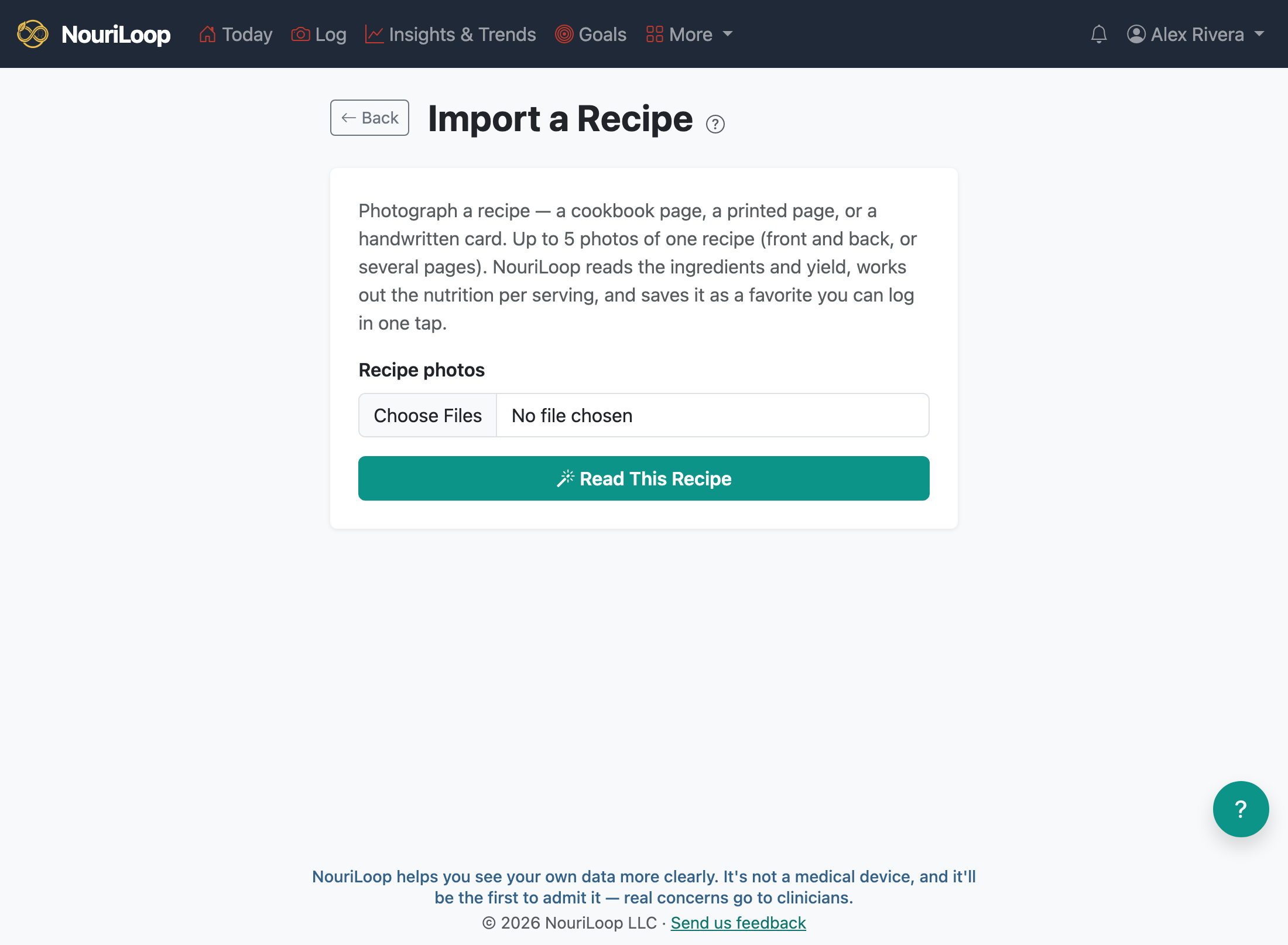
Have a recipe you cook again and again — a cookbook page, a printed recipe, or a handwritten card from the family box? Photograph it once and NouriLoop reads the whole thing: the ingredients, how many servings it makes, and the preparation steps. It works out the nutrition per serving and saves the recipe as a favorite, so logging that dish is one tap from then on — no new photo, no waiting.
Importing a recipe
- Go to Log → Favorites and tap Import a recipe (it's also on your dashboard, next to Log Meal).
- Take up to 5 photos of one recipe — the front and back of a card, or each page of a spread. Handwriting is fine.
- Tap Read This Recipe and give it a few seconds.
Checking what it read
You'll see everything NouriLoop read, ready to correct: the recipe's name, the ingredient lines, and the number of servings it makes. That servings number matters — the nutrition is divided by it, so the favorite stores exactly one serving. If the recipe doesn't say how many it serves (common on handwritten cards), the AI makes its best guess and asks you to confirm.
If something was hard to read, the AI asks a question or two. You can answer and have it re-read the recipe, or simply fix the fields yourself — whichever is easier.
Cooking from it later
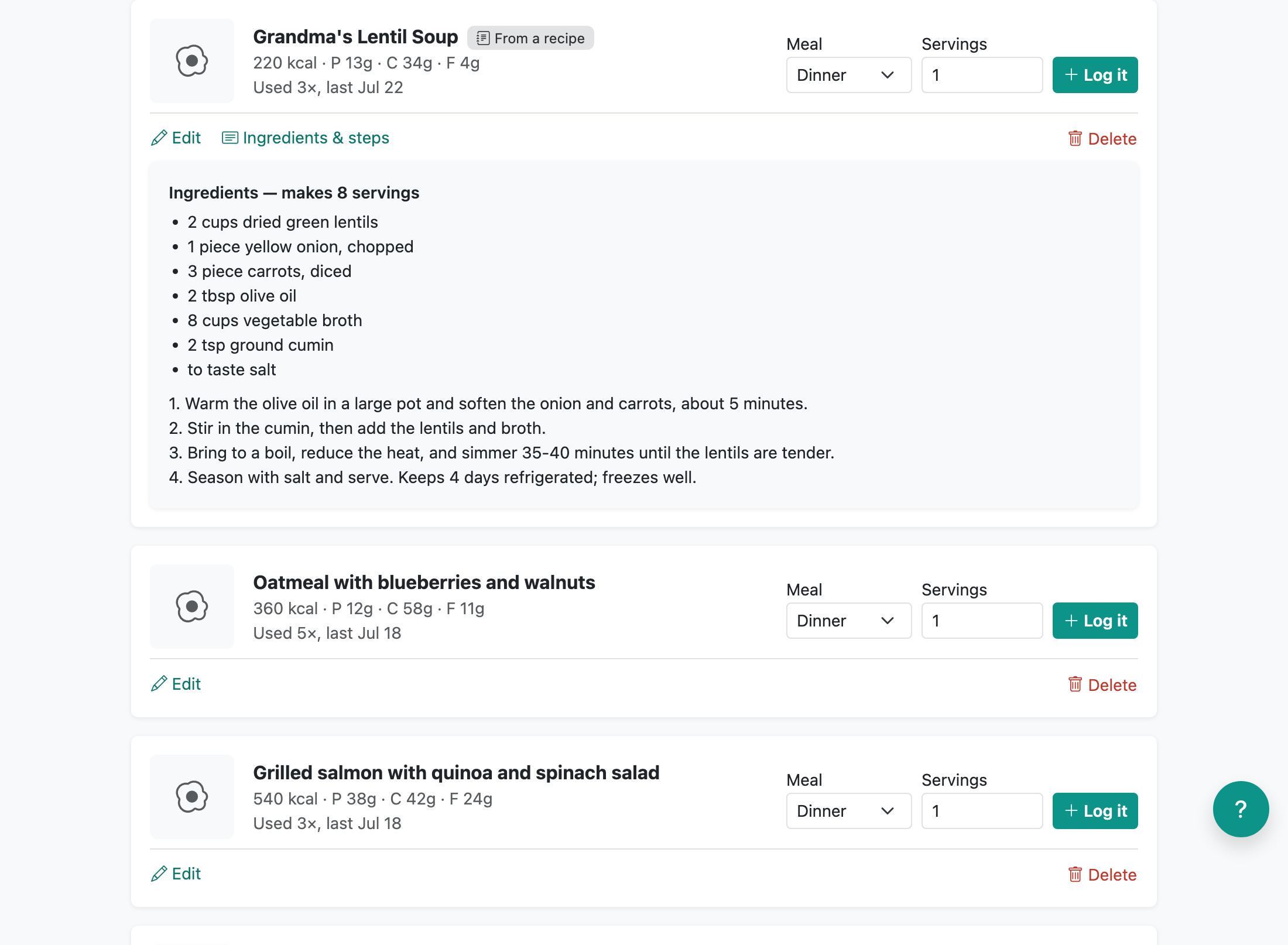
Your imported recipe lives with your other favorites, marked with a small From a recipe badge. Tap Ingredients & steps on its card to see the full recipe — the ingredient quantities for the whole batch, and the preparation steps as written — so you can cook from your phone without digging out the card.
Logging it
Log it like any favorite: pick the meal type, set how many servings you ate, and tap Log it. The nutrition scales to your portion automatically.
On the Free plan, a recipe import counts as one of your monthly AI analyses — the same allowance as meal photos. Logging from the saved favorite afterwards never needs another photo or AI analysis.
Related:
Still stuck? Browse all help topics.